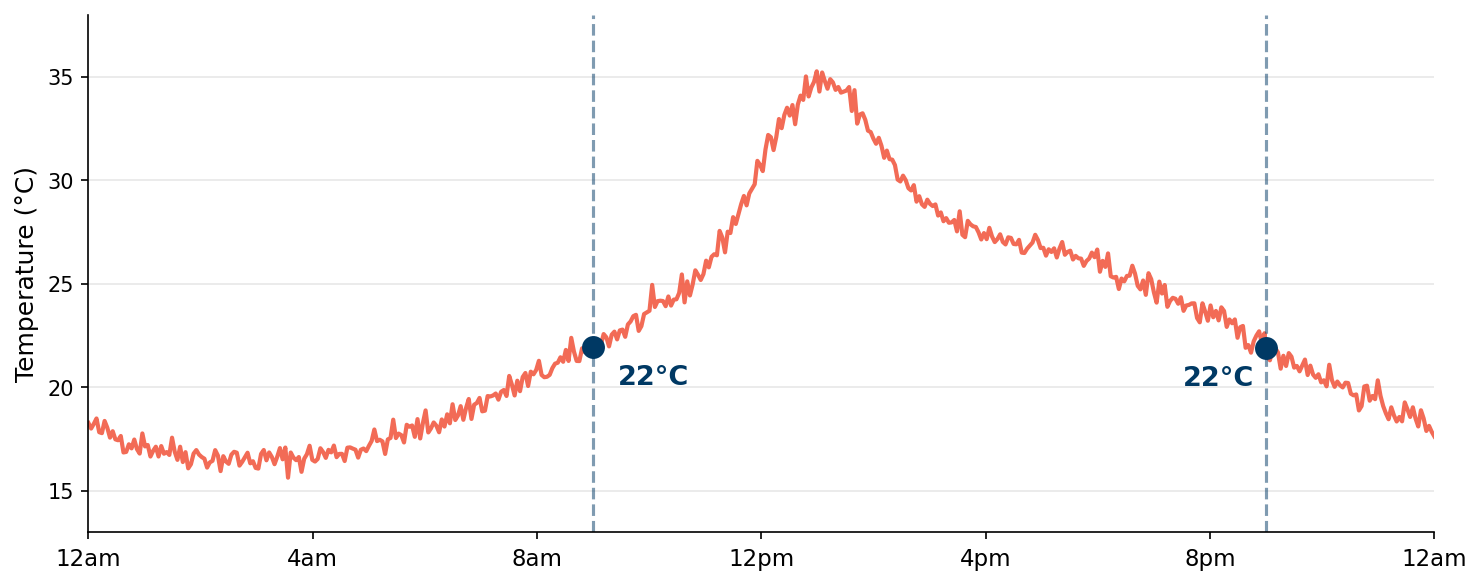
Watch the overall trend reverse when you separate the groups — nothing changes except the level of analysis.
Detecting this requires looking at the data at two different levels — the aggregate and the segment. You need tools that let you control the grain of your calculation.
The common thread
Mishap
The assumption
The check
Seasonal panic
“Month-to-month drop = crisis”
Compare year-over-year
Endpoint illusion
“Start and end match = stable”
Show the full timeline
Simpson’s paradox
“Overall winner = winner everywhere”
Break down by subgroup
Each assumption sounds reasonable. Each one is wrong. The only way to tell is to check at a different level.
And sometimes the honest answer is: “We don’t have the data to check.”
Not all calculations are equal
Four types of calculations
Layer
What it computes
Example
Depends on view?
Row-level
One value per row, before grouping
DATEDIFF(‘day’, [Order Date], [Ship Date])
No
Aggregate
Groups rows by dimensions in the view
SUM([Sales]), AVG([Profit])
Yes — changes with dimensions
Table calculation
Runs on the aggregated results
Running total, % of total, rank, MoM %
Yes — changes with layout
LOD expression
You specify the grain
{FIXED [Customer ID] : MIN([Order Date])}
No — ignores the view
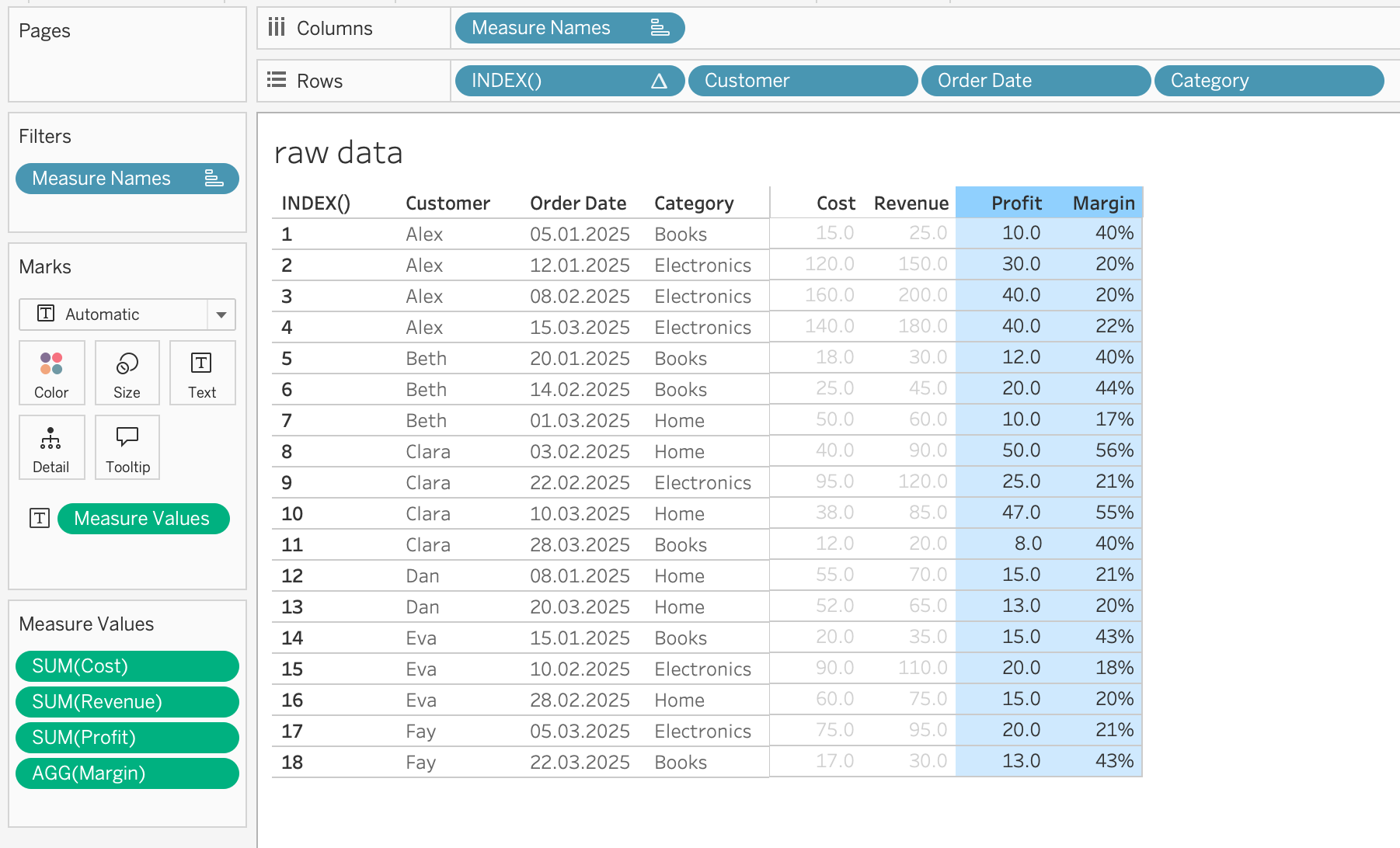
Layer 1: row-level — each row gets its own value
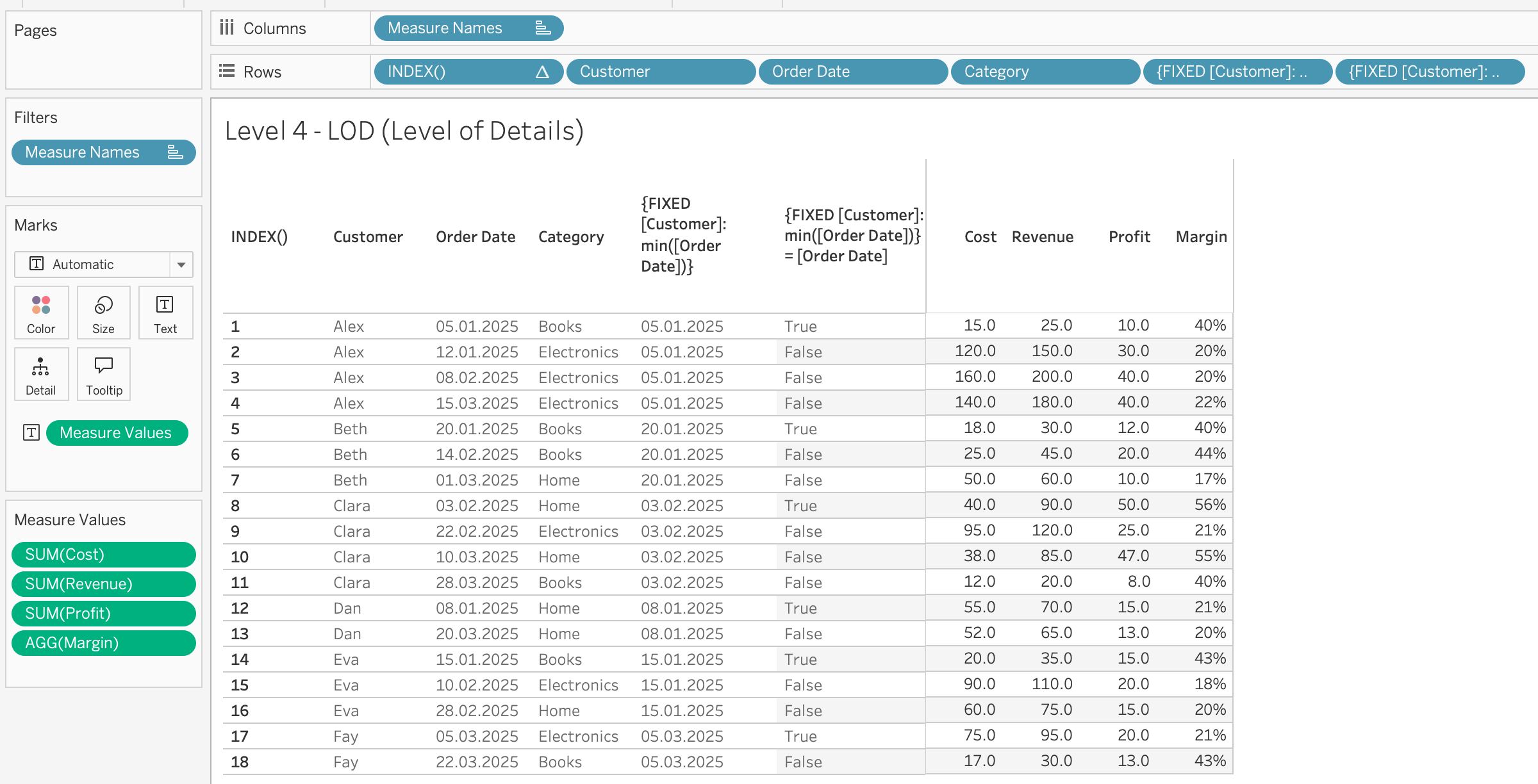
The Profit and Margin columns are row-level calculations: [Revenue] - [Cost] and ([Revenue] - [Cost]) / [Revenue]. Each row computed independently.
Layer 2: aggregate — what changes with the grouping
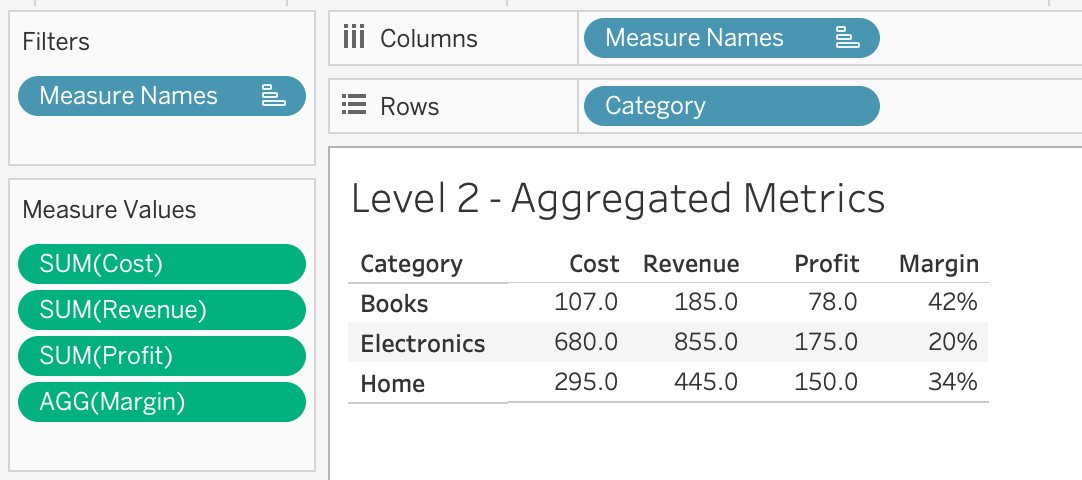
Group by category
Electronics leads revenue. Books leads margin.
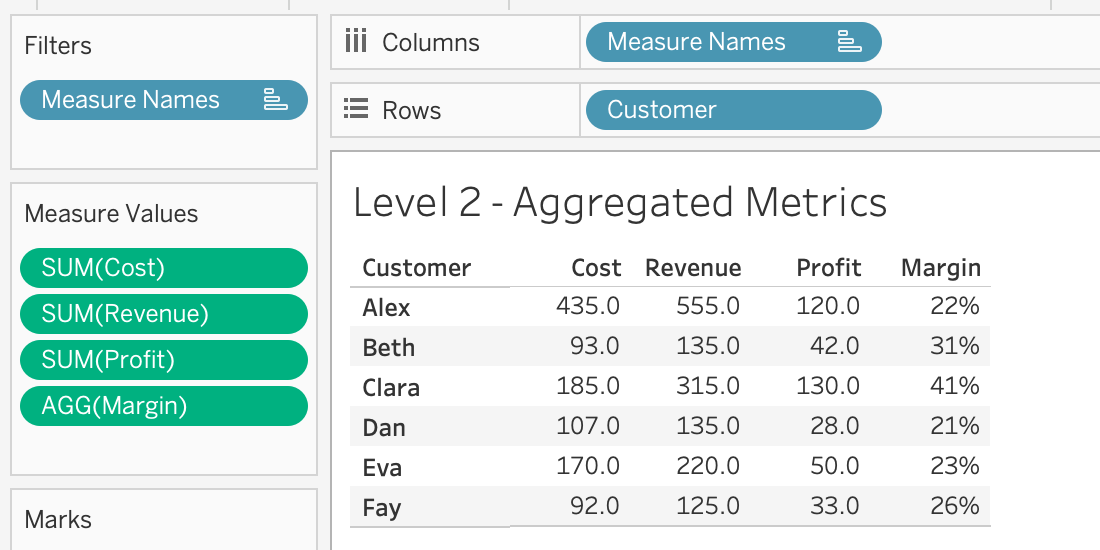
Group by customer
Alex is 37% of total revenue.
One formula — SUM([Revenue]) — but the grouping determines what you see.
Layer 3: table calculations — derived from the layout
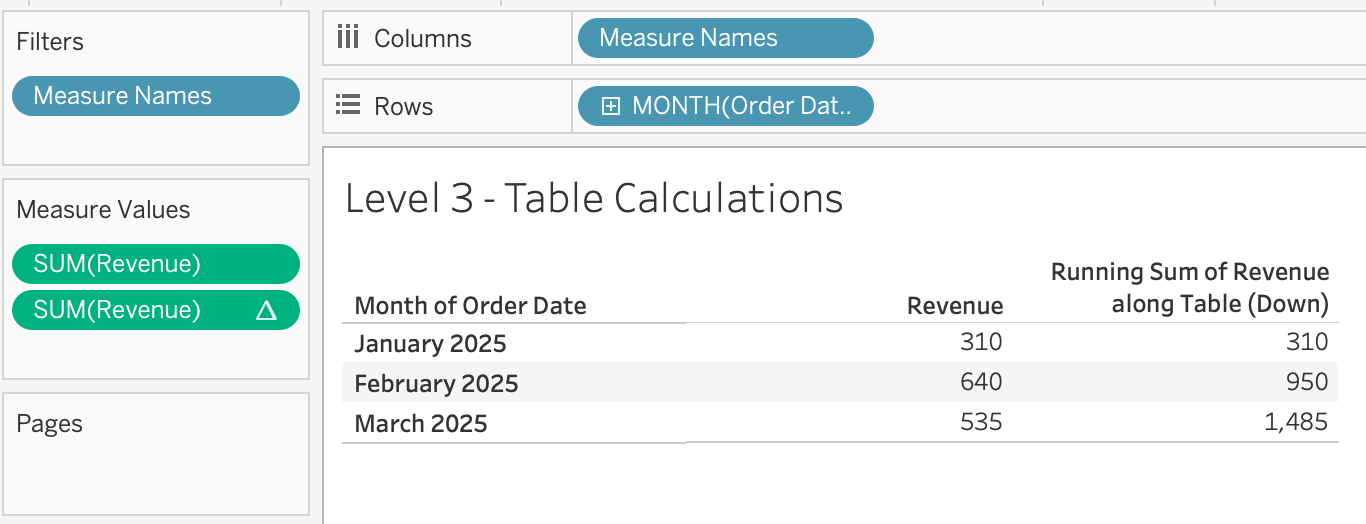
Running total — monthly revenue accumulates across months:
March dipped from February, but the cumulative trajectory shows the business is growing overall. This is how you answer the CFO who asks “are we going to beat last year?” — overlay two running totals and see where they cross.
Layer 3: where is the mix shifting?
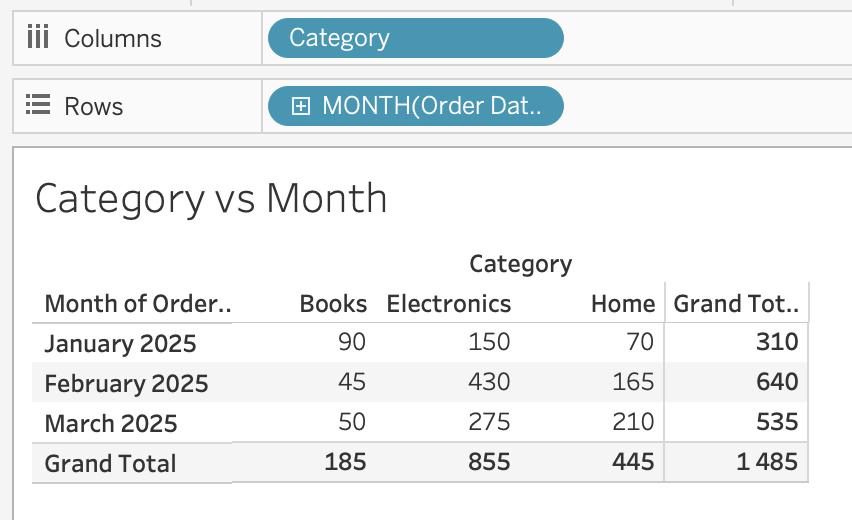
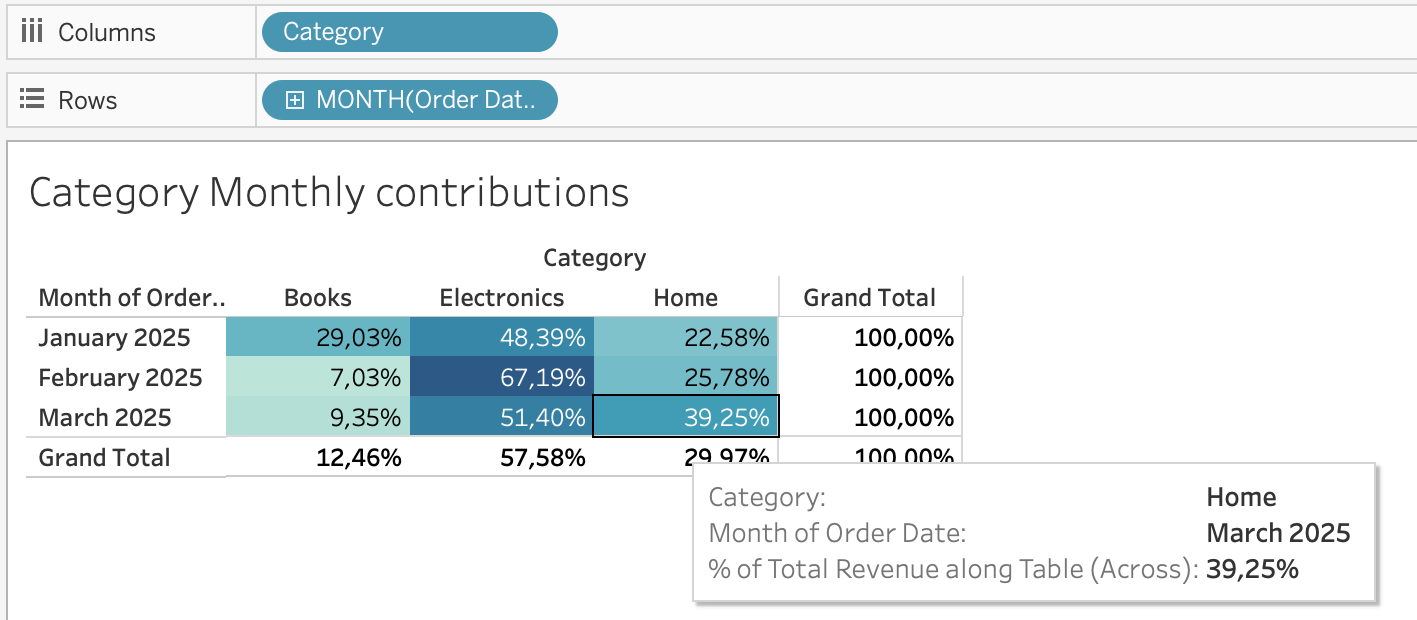
The same data, broken down by category per month — first as raw revenue, then as percent of total:
Books collapsed from 29% to single digits. Home grew from 23% to 39%. You wouldn’t see these shifts in the raw revenue totals on the left.
Layer 4: LOD — what the view can’t see
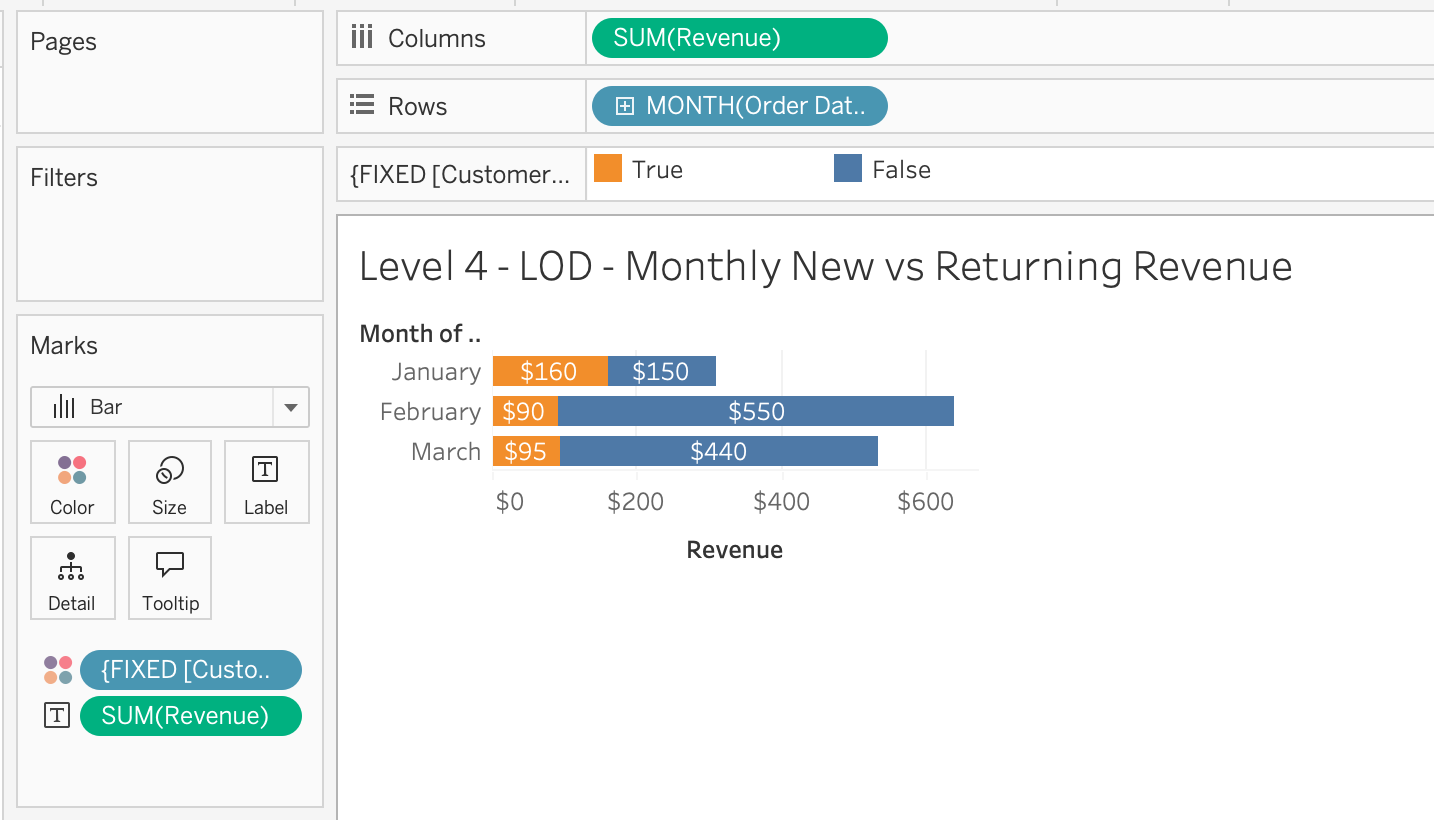
{FIXED [Customer] : MIN([Order Date])} — each customer’s first purchase date, attached to every row.
LOD in action: new vs. returning revenue
January is all new customers. By March, most revenue comes from returning customers — with only Fay as a new arrival.
The execution order
Data Source
→
LOD FIXED
→
Dimension Filters
→
Aggregation
→
Table Calculations
→
Table Filter
LOD runs early — before most filters. Aggregation happens next. Table calculations run last — on the results you see on screen.
Which layer do you need?
Quiz time
For each question: which type of calculation do you need?
Row-level
Aggregate
Table calculation
LOD expression
One question to decide
“If I add another dimension to this chart, should this number change?”
Yes → table calculation. The result depends on the view layout.
No → LOD expression. The result is fixed at the grain you specify.
Practice: diagnosing the Olist stagnation
You’re continuing with your Olist workbook from last week.
Last week you found the stagnation. This week you diagnose it — from two angles:
Products: group the 73 categories into macro-categories, then use table calculations to find where the decline is concentrated.
Customers: use LOD expressions to identify each customer’s first purchase date, split new vs. returning, and build a cohort retention view.